
Satisfactory Mod Manager (SMM) is the free official desktop app from the satisfactorymodding team. It installs Satisfactory Mod Loader (SML) and every mod you pick from ficsit.app in one click, and it pulls in each mod’s dependencies for you. This guide covers SMM v3.2.0 (released 8 November 2026) on Satisfactory patch 1.2.5.0: installing it on each platform, managing mods and profiles, and fixing the problems that show up after a game patch.
Key takeaways
- Download SMM only from smm.ficsit.app, the satisfactorymodding GitHub releases page or winget.
- Launch Satisfactory to the title screen once before you open SMM so it can find a complete install.
- Keep the mod list filter on Compatible, and give each playthrough its own profile.
- On Steam Deck and Linux, use the native AppImage. Don’t run SMM inside Proton.
- After a game patch, back up your saves and wait for SML and your key mods to update before you play modded.
Fact-checked
We checked these key facts against the sources named, on November 13, 2026:
- Epic installs can’t be relocated: if you move the folder, reinstall through the Epic Games Launcher. v3.2.0 fixes two Epic problems (source: github.com)
- SMM detects Epic installs through the launcher’s API, and v3.2.0 fixes Epic detection and launching and adds Epic Launcher preview support (source: github.com)
- Patch 1.2.5.0 notes that dedicated servers are PC-only and unavailable during crossplay, so crossplay sessions with console players run unmodded (source: satisfactory.wiki.gg)
- The page also shows the mod’s description, its dependencies, its compatibility status and its source code link if the author published one (source: ficsit.app)
Satisfactory Mod Manager in November 2026: current versions at a glance
As of 13 November 2026 the current versions are SMM v3.2.0, SML 3.12.0 and Satisfactory patch 1.2.5.0. SMM installs and updates SML for you, so you only download the manager yourself. The official docs don’t put dates or version numbers on their pages, so this table is the fastest way to check what you should be running.
| Component | Latest version | Release date | What changed | Source |
|---|---|---|---|---|
| Satisfactory Mod Manager | v3.2.0 | 8 Nov 2026 | Epic Launcher preview support, faugus launcher support, network-use disclosure, AI-disclosure and controller-compatibility icons, Epic detection and launch fixes, crash and AppImage fixes | satisfactorymodding GitHub releases |
| Satisfactory Mod Manager (previous) | v3.1.0 | 6 Jun 2026 | Prior stable release | satisfactorymodding GitHub releases |
| Satisfactory Mod Loader | 3.12.0 | 6 Jun 2026 | Satisfactory 1.2 support, binaries built on Linux, Access Transformers and .NET 8 updates for developers | SML release notes |
| Satisfactory (game) | 1.2.5.0 (build 517554) | 4 Nov 2026 | PC and console crossplay | Satisfactory Wiki, Steam patch notes |
| winget package | SatisfactoryModding.SatisfactoryModManager 3.2.0 | 8 Nov 2026 | Updated to v3.2.0 | microsoft/winget-pkgs |
SMM vs SML vs ficsit.app (SMR): who does what
Satisfactory modding uses three separate pieces. If you know which one does what, most error messages become easy to read.
- Satisfactory Mod Loader (SML) is the framework that runs inside the game. It loads mods, adds the in-game Mods menu and provides shared code that mods depend on. Every mod needs it. All players in a multiplayer session must run the same SML version.
- Satisfactory Mod Manager (SMM) is the desktop app. It finds your game, downloads SML and mods, resolves dependencies, tells you when updates are out and keeps your mod lists in profiles. It is built with Wails, Svelte and Skeleton, and the source code is on GitHub under the satisfactorymodding organisation.
- ficsit.app, also called the Satisfactory Mod Repository (SMR), is the website that hosts the mods. You browse descriptions, compatibility status and downloads there, and SMM pulls its listings from the same place.
- ficsit-cli is the command-line alternative. It is mostly used to manage dedicated servers without a desktop.
Minecraft mods ask you to choose between Forge, Fabric and NeoForge. Satisfactory has only one loader, and SMM handles it for you. If you’re looking for a multi mod manager that covers several games, SMM is not one: it manages Satisfactory only.
Where to download safely (and where not to)
Only three sources are official: smm.ficsit.app, the releases page of the satisfactorymodding/SatisfactoryModManager repository on GitHub, and winget. The GitHub README says SMM is code-signed through SignPath.io with a certificate from the SignPath Foundation. When you open the installer’s Properties, the Digital Signatures tab should show that signature.
Modder's note
Search results list lookalike “Satisfactory Mod Manager” download sites and mirror pages. Skip all of them. If the URL isn’t smm.ficsit.app, the satisfactorymodding GitHub org or the winget command below, don’t run the file.
How to install Satisfactory Mod Manager (by platform)

On Windows you install SMM with a normal installer or one winget command. On Linux and Steam Deck you use the native AppImage. On macOS SMM runs natively, but the game itself needs a compatibility layer. The table sums up each route, and the steps follow below.
| Platform | Download | Extra step | Gotcha |
|---|---|---|---|
| Windows 10/11 | Installer from smm.ficsit.app or GitHub | Approve the browser “Keep” prompt and SmartScreen | Windows 11 may need the Unblock checkbox in Properties |
| Windows (winget) | winget install SatisfactoryModding.SatisfactoryModManager |
None | Run winget upgrade later to update |
| Linux / Steam Deck | AppImage or standalone build from GitHub releases | chmod +x on the AppImage |
The standalone build needs the packages listed on the release page |
| Arch Linux | AUR package satisfactory-mod-manager |
Build with your AUR helper | Works with the Steam build; Epic via legendary may work |
| macOS | Mac build from the official sources | None for SMM | Satisfactory itself needs CrossOver or similar |
Before you start: launch the game to the title screen once
Start Satisfactory once and wait for the main menu before you install SMM. This lets Steam or Epic finish writing every file and registering the install. SMM checks for the game executable, and an install that has never launched is a common cause of the “did not find game executable” error.
Install steps
- Launch Satisfactory to the title screen, then quit.
- Download SMM from smm.ficsit.app, GitHub releases or winget.
- Run the installer and approve the Windows prompts.
- Open SMM and pick your game install in the top-left dropdown.
- Set the filter to Compatible and click install on a mod.
- Click Play in SMM or start the game from your launcher.
Windows 10 and 11
The Windows installer is the default route for most players.
- Download the Windows installer from smm.ficsit.app or the GitHub releases page.
- If Chrome or Edge warns that the file isn’t commonly downloaded, open the download list and choose Keep.
- On Windows 11, if the installer won’t start or is flagged, right-click it, open Properties, tick Unblock at the bottom of the General tab and click OK.
- Run it. If SmartScreen shows “Windows protected your PC”, click More info and then Run anyway. Check the publisher shown on that screen first.
- Finish the setup and launch SMM from the Start menu.
SmartScreen judges a file partly by how many people have downloaded it. A brand-new signed release can still get the prompt for a few days after launch.
Windows via winget (one command)
The Windows Package Manager installs SMM with one command. Open Terminal or PowerShell and run:
winget install SatisfactoryModding.SatisfactoryModManager
The winget-pkgs repository updated the package to 3.2.0 on 8 November 2026. To update later, run winget upgrade SatisfactoryModding.SatisfactoryModManager. SMM also notifies you about its own updates when you open it.
Linux and Steam Deck (AppImage, standalone, AUR)
Use the native Linux build. Don’t install the Windows version inside Proton or Wine. Players who try that report that the Edge WebView dependency fails to install in the Proton container, so the app never opens.
- Download the AppImage from the GitHub releases page. On Steam Deck, switch to Desktop Mode first.
- Make it executable: right-click, open Properties and allow it to run as a program, or run
chmod +xon the file in a terminal. - Launch it. SMM finds the Steam install of Satisfactory, including installs on an SD card that Steam knows about.
If you prefer the standalone build, install the system packages listed on the release page first. On Arch and Arch-based distros such as EndeavourOS, the AUR package satisfactory-mod-manager is an option. Its page says it works with the Steam build and may work with Epic installs managed through legendary. v3.2.0 also adds support for faugus launcher, the Linux launcher some players use to run the Epic version.
Modder's note
On Steam Deck, add the AppImage to Steam as a non-Steam game. That lets you open SMM from Game Mode for quick mod toggles without switching back to Desktop Mode.
macOS (SMM runs natively, the game doesn’t)
SMM itself runs natively on macOS. Satisfactory has no Mac version, though, so Mac players run the Windows game through CrossOver or a similar compatibility layer. Because of that, the “SMM cannot find install location” problem new Mac players report is expected: the game sits inside a Windows bottle that the Steam and Epic APIs on macOS don’t expose. Ask in the Satisfactory Modding Discord for setups that are known to work, because the official docs only note that the game needs CrossOver.
First launch: pointing SMM at your game
SMM finds Satisfactory automatically by asking the Steam and Epic Games Launcher store APIs where it is installed. You don’t browse to a folder. If you have more than one install, pick the one you want from the dropdown at the top left.
Did you know?
According to the official ficsit.app FAQ, SMM finds your game by querying the Steam and Epic store app APIs. That’s why you can’t point it at an Epic install manually: if the install has moved, you have to reinstall it through Epic.
Steam installs
Steam installs are detected as soon as the game is installed and has launched once. SMM installs mods into the game’s own folder, wherever Steam put it, so you don’t choose a drive in SMM. The “doesn’t let me pick a drive” complaint usually means the game is on a different drive than expected. To change drives, move the game in Steam (Properties, Installed Files, Move install folder) and reopen SMM. Moving the game doesn’t touch your saves.
Epic installs (including Epic Launcher preview support in v3.2.0)
Epic installs appear as separate entries. The ficsit.app FAQ notes that Epic’s Early Access and Experimental versions are listed separately and use separate directories, so make sure you have the right one selected before you install anything. Epic installs can’t be relocated: if you move the folder, reinstall through the Epic Games Launcher.
v3.2.0 fixes two Epic problems. Installs weren’t found on fresh setups of the older Epic Launcher, and launching Epic installs from SMM failed. It also adds support for the Epic Launcher preview. If Epic detection failed for you on v3.1.0, update before trying anything else.
Adding a dedicated server
SMM 3.0 and later can manage a dedicated server alongside your game. Open Manage Servers in the left panel. Add either a local server path or a remote server over SFTP, entering the host, username, password and port. The official dedicated server docs list SFTP on port 22 as the default and recommend it over plain FTP. Many hosts use a different port such as 2022, so check your host’s panel.
Installing, updating and removing mods

To install a mod, click its install button in SMM. SMM downloads the mod, SML and any required libraries, and installs them in the right order. When a mod has an update, SMM tells you, and you can update one mod or all of them at once.
You can also start from the website. Each mod page on ficsit.app has an install button that hands the mod to SMM. The page also shows the mod’s description, its dependencies, its compatibility status and its source code link if the author published one. Read the description before you install a large mod. Authors use it for load-order notes, known conflicts and save-compatibility warnings.
Use the “Compatible” filter and read the compatibility icons
The Compatible filter is the most useful setting in SMM. It hides mods that aren’t marked as working with your game build, so you can’t install a broken mod by accident. Compatibility is reported for each game branch, so a mod can work on Early Access and be broken on Experimental. Use the search bar to find mods by name, and the filters to sort by popularity, latest update or category.
Modder's note
Leave the filter on Compatible all the time. Turn it off only to check whether a mod you already use has been flagged as damaged or broken after a patch.
Install a specific older version
Open the mod’s detail panel in SMM and use the version selector to pin a specific release. Pinning helps when a new mod version breaks a save or a mod that depends on it. It also helps when a multiplayer group needs to match versions exactly. Pinned mods don’t update automatically, so remember to unpin them later.
Turn off all mods for a vanilla session
Flip the Mods switch at the top left of SMM to start the game unmodded without uninstalling anything. Your profiles and downloads stay where they are. If the switch doesn’t seem to work, the ficsit.app FAQ suggests deleting the Mods folder inside the game’s install directory (FactoryGame\Mods). SMM reinstalls whatever the active profile needs the next time you turn mods back on.
Configure mods in-game and uninstall cleanly
Most mods are configured in-game. SML adds a Mods entry to the main menu where you can see the loaded mods and open their config options. Settings are saved as files under FactoryGame/Configs.
To uninstall a mod, click its remove button in SMM. Don’t delete files from the game folder by hand, because SMM tracks dependencies and removes libraries that nothing else needs. To uninstall SMM itself on Windows, use Settings, Apps. Turn mods off first if you want the game folder left vanilla.
Mod profiles: separate setups and sharing with friends
A profile is a named mod list. Each playthrough can have its own set of mods, and switching profiles swaps the installed mods in a few seconds. Create one profile per save: a quality-of-life profile for your main factory and an overhaul profile for a second run, for example.
You can export a profile as a file and send it to friends over Discord. They import it in SMM, and their mods install to match yours. The official docs also mention a Copy Mods List option in settings for sharing a plain-text list.
Modder's note
Before a modded multiplayer session, export your profile and have everyone import it, including whoever runs the server. Matching profiles prevent most “can’t join” problems, because they also force everyone onto the same SML version.
Modded multiplayer, dedicated servers and crossplay
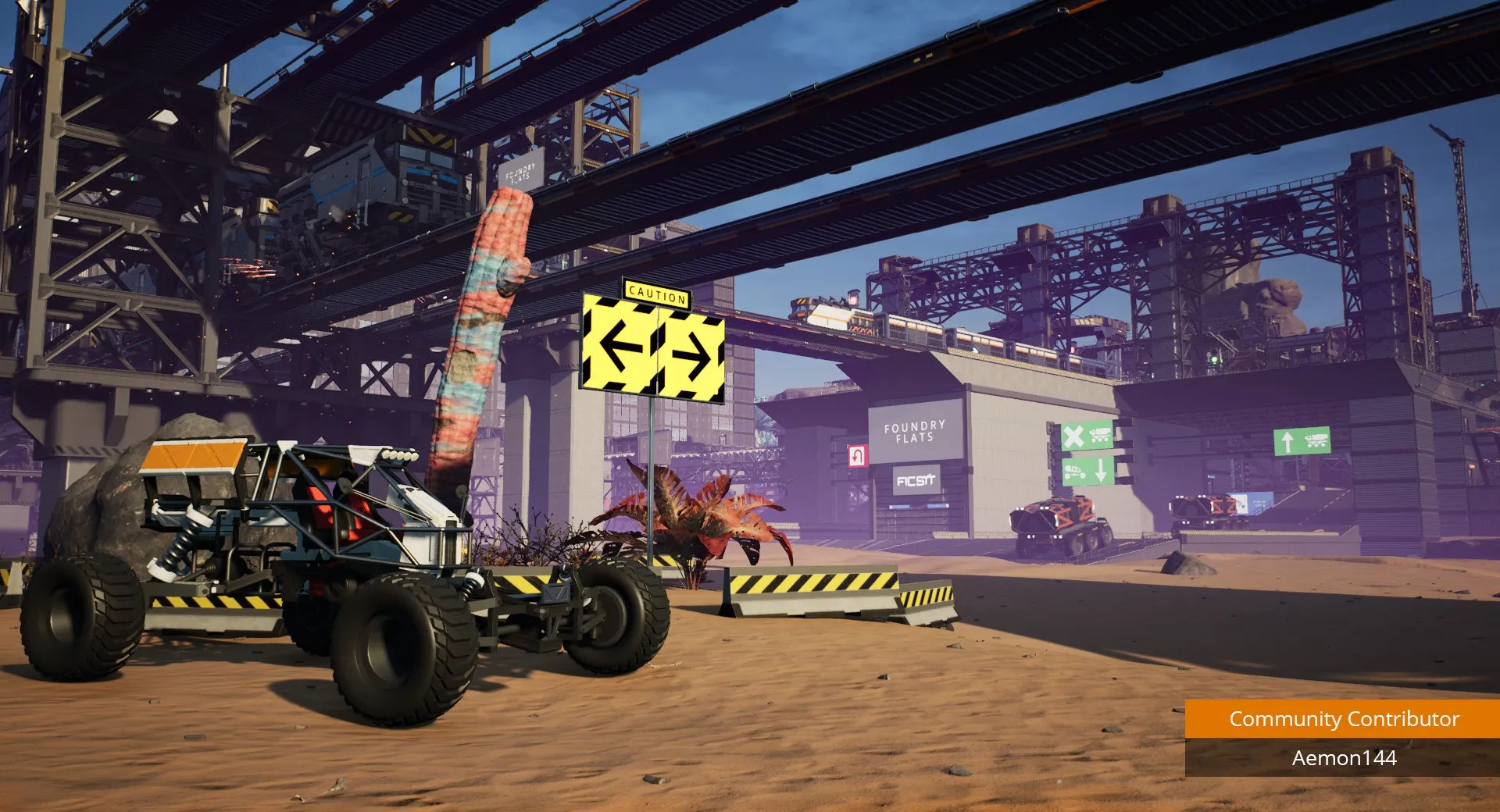
Modded multiplayer works on PC only, and everyone in the session needs the same mods and the same SML version. Consoles don’t support mods. Patch 1.2.5.0 notes that dedicated servers are PC-only and not available during crossplay, so a mixed PC and console session runs vanilla.
Local vs remote servers
SMM manages a server on the same machine through its folder path, and a remote or rented server over SFTP. Not every mod has a server build. On ficsit.app, check for the checkmark in the Server column, or use SMM’s server-compatible filter. SMM can’t edit a remote mod’s settings. Configure the mod in your local game, then upload its config file to FactoryGame/Configs/ on the server. Stop the server before you change its mods.
Why friends can’t join after you add mods
A failed join after a mod change almost always comes from a mismatch: a different SML version, a missing mod or a different mod version. Hosted servers that update the game automatically can also break mods overnight. Re-export the profile, have everyone import it, then update the server through SMM so it matches.
When a Satisfactory patch breaks your mods
When Coffee Stain Studios releases a patch, mods that touch the changed systems can stop working until SML or the mod author ships an update. Back up your saves, check the compatibility icons and play vanilla or wait until your mods show as compatible. The official SML 3.11 to 3.12 upgrade guide warns that mods touching systems changed in 1.2, such as vehicles, are unlikely to work without updates.
2026 patch timeline and mod impact
| Patch | Date | Mod impact |
|---|---|---|
| SML 3.12.0 | 6 Jun 2026 | Added Satisfactory 1.2 support. Mods built for 1.1 needed updates |
| 1.2.4.0 | 11 Aug 2026 | Disabled the engine’s audio routing, which broke Metasound-based mods |
| 1.2.4.1 | 12 Oct 2026 | Re-enabled audio routing to fix audio mods. Some players reported other mods breaking and saves not loading with mods enabled |
| 1.2.5.0 | 4 Nov 2026 | Added PC and console crossplay. Dedicated servers stay PC-only |
Did you know?
According to the 1.2.4.0 and 1.2.4.1 patch notes on SteamDB, patch 1.2.4.0 switched off the engine’s audio routing. Metasound-based mods stayed broken for two months until 1.2.4.1 turned it back on.
The reports of broken saves after 1.2.4.1 come from community Q&A posts, not official notes. They match the usual pattern, though: a save made with a mod that hasn’t been updated may refuse to load until the mod catches up.
Patch-day checklist
- Back up your save folder before the update downloads. Steam’s “only update when I launch it” option buys you time.
- After the patch, open SMM and check whether a new SML is out and what icons your key mods show.
- If anything important shows as broken, switch the Mods toggle off and play vanilla on a separate save.
- Update SML and your mods through SMM once they’re marked compatible.
- Load a copy of your save first, not the original.
Before you install
Don’t load your main modded save on a fresh game patch until SML and every mod in that save show as compatible. Loading a save with mods missing can strip their buildings permanently.
Satisfactory Mod Manager not working: fixes
Most SMM problems come down to four causes: the game hasn’t been launched, there’s a launcher detection issue, SML doesn’t match the game version, or a security tool is blocking the app. Use the table to match your symptom, then read the detailed fix below it.
| Symptom | Likely cause | Fix |
|---|---|---|
| SMM installs but doesn’t open | Blocked by antivirus, corrupt download, or Windows build run under Proton | Redownload from an official source, allow it in antivirus, use the native build on Linux |
| “No Satisfactory installs found” | Launcher API can’t report the game | Launch the game once, update SMM to v3.2.0, check the launcher library |
| “Failed to validate installation: did not find game executable” | Incomplete or moved install | Verify files in Steam or Epic, launch to title screen |
| Window opens offscreen | Saved window position on a disconnected monitor | Reset the window position (see below) |
| “Plugin ‘SML’ failed to load” | SML mismatched or missing after an update | Update through SMM, or delete FactoryGame\Mods and reinstall |
| Mods installed but not in game | Wrong install selected, mods toggled off, Epic branch mix-up | Check the dropdown, toggle, and branch |
| Friends can’t join | Different SML or mod versions | Share and import one profile |
SMM won’t open or crashes on start
Redownload from an official source, then install again. Antivirus tools sometimes quarantine part of the app, so check your quarantine list. On Linux, make sure the AppImage is executable and that you’re not running the Windows build through Proton. If you were on an older 3.x release, v3.2.0’s crash and AppImage fixes are a good reason to update.
“No Satisfactory installs found” / “did not find game executable”
Both errors mean the launcher reported an install that SMM couldn’t confirm. Verify the game files in Steam (Properties, Installed Files, Verify integrity) or Epic (Manage, Verify), then launch to the title screen once. For Epic, check that you’re looking at the right Early Access or Experimental entry, and reinstall if the folder was moved. EndeavourOS and other Linux users with the Epic version should make sure their launcher (legendary, Heroic or faugus) is one that SMM supports.
Window offscreen
The ficsit.app FAQ lists an offscreen window as a known issue with no confirmed cause. On Windows, click SMM in the taskbar, press Alt+Space, choose Move, then use the arrow keys to bring the window back onto your screen. Disconnecting a second monitor while SMM is closed is the usual trigger.
“Plugin ‘SML’ failed to load”
This message means the game found a broken or mismatched SML. It usually appears after a game update. Open SMM and update everything. If the error stays, turn mods off, delete FactoryGame\Mods, verify the game files and let SMM reinstall the profile. Forum threads also report fixing it by reinstalling SMM.
Mods installed but not showing in game
Check that the Mods toggle is on, that the dropdown shows the same install you launch, and that you start the game through SMM or that same launcher entry. On Epic, mods installed to Experimental won’t appear in Early Access.
How to grab logs and the debug-info zip before asking on Discord
Use SMM’s Generate debug info option. It packs your logs and setup into a zip. Post that zip in the #help-using-mods channel of the Satisfactory Modding Discord with a short description of the problem. If SMM won’t open at all, collect the files by hand.
| What | Path (Windows) | When you need it |
|---|---|---|
| Profiles and install records | %APPDATA%\ficsit\ |
Backing up or moving profiles |
| Download cache | %LOCALAPPDATA%\ficsit\downloadCache\ |
Clearing corrupt downloads |
| SMM logs | %LOCALAPPDATA%\SatisfactoryModManager\logs |
SMM won’t open or crashes |
| Game logs | %LOCALAPPDATA%\FactoryGame\Saved\Logs |
Game crashes with mods |
| Installed mods | FactoryGame\Mods in the game folder |
Manual cleanup after SML errors |
| Mod configs | FactoryGame\Configs in the game folder |
Copying settings to a server |
Big mods worth starting with (and checking first)
For a first modded run, start with small quality-of-life mods. The qol tag on ficsit.app lists mods that keep the vanilla feel while removing friction. Large overhaul mods such as Satisfactory Plus change recipes and progression across the whole game. They depend on specific SML versions and take the longest to update after a patch.
Before you commit a long save to an overhaul, check three things on its ficsit.app page:
- its compatibility status for your branch
- its required SML version
- its last update date
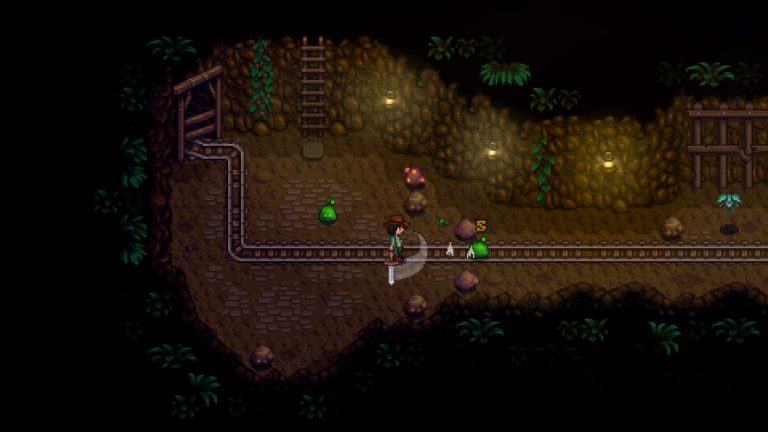
Then give it its own profile. Players coming from Stardew Valley mods will find that habit familiar: overhauls get their own save and their own mod list. From there, set the filter to Compatible, make your first profile and export it before your next co-op session.
FAQ
Is the Satisfactory Mod Manager safe?
Yes, if you download it from smm.ficsit.app, the satisfactorymodding GitHub releases page or winget. The app is open source and code-signed through the SignPath Foundation. Lookalike download sites are the real risk.
Where do I download Satisfactory Mod Manager?
From smm.ficsit.app, the GitHub releases page of satisfactorymodding/SatisfactoryModManager, or by running winget install SatisfactoryModding.SatisfactoryModManager on Windows. On Arch Linux, the AUR package satisfactory-mod-manager is another option.
How do I update Satisfactory Mod Manager?
SMM notifies you when a new version is out and can update itself. With winget, run winget upgrade SatisfactoryModding.SatisfactoryModManager. The current version is v3.2.0, released 8 November 2026.
What’s the difference between Satisfactory Mod Manager and Satisfactory Mod Loader?
SML runs inside the game and loads mods. SMM is the desktop app that installs SML and mods, handles dependencies and keeps profiles. You download SMM, and SMM handles SML for you.
Does Satisfactory Mod Manager work on Linux and Steam Deck?
Yes. Use the native AppImage (made executable with chmod +x), the standalone build, or the AUR package. Don’t install the Windows version inside Proton, because the Edge WebView dependency fails there.
Does Satisfactory Mod Manager work with the Epic Games version?
Yes. SMM detects Epic installs through the launcher’s API, and v3.2.0 fixes Epic detection and launching and adds Epic Launcher preview support. Early Access and Experimental show up as separate entries.
Why can’t the mod manager find my Satisfactory install?
Usually the game hasn’t been launched since install, the files are incomplete, or an Epic install was moved. Verify the files, launch to the title screen, reinstall moved Epic games, and update to SMM v3.2.0.
Why did my mods stop working after the latest Satisfactory update?
Game patches can change systems that mods rely on. Patch 1.2.4.0, for example, broke Metasound-based mods until 1.2.4.1. Turn mods off, back up your saves, and update once SML and the mods show as compatible.
Can I use mods in multiplayer or on a dedicated server?
Yes, on PC. Every player needs the same SML and mod versions, which is easiest with a shared profile. SMM manages local servers and remote servers over SFTP, but each mod needs a server build.
Do mods work with crossplay or on console?
No. Consoles don’t support mods. Patch 1.2.5.0 notes that dedicated servers are PC-only and unavailable during crossplay, so crossplay sessions with console players run unmodded.
What changed
- Nov 13, 2026 First published.
About the article
- Fact-checked by Hollis Tremaine against the sources listed below before publication.
- Published
Sources (8)
- SatisfactoryModManager v3.2.0 release (github.com)
- winget-pkgs: SatisfactoryModding.SatisfactoryModManager 3.2.0 (github.com)
- SatisfactoryModManager v3.1.0 release (github.com)
- SatisfactoryModLoader v3.12.0 release notes (newreleases.io)
- Satisfactory Mod Loader on ficsit.app (ficsit.app)
- Updating from SML 3.11 to 3.12 (docs-dev.ficsit.app)
- Patch 1.2.5.0 – Satisfactory Wiki (satisfactory.wiki.gg)
- Satisfactory crossplay update patch notes (SteamDB) (steamdb.info)